










YS-TP035 Touch PAD Keyboard Solution
YS-TP035 touch pad with keyboard solution, realizing the keyboard function of detecting 80 touch keys, sliding mouse function of touch pad, and providing tactile feedback through vibration motor and buzzer; The ultra-thin thickness makes it more convenient to carry and apply in special scenarios. It has 5 backlight modes, adjustable frequency and brightness, and a power-off memory function; Supports wired and Bluetooth connections; Equipped with battery level detection function, the battery can be charged through USB.
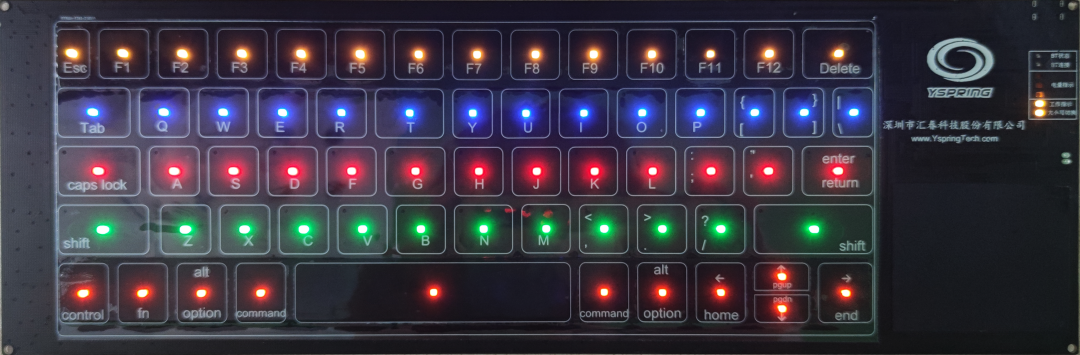
Yspring YS-TP035 Touch PAD with Keyboard DEMO Board
Product Features
● Detection buttons: 80;
● Touch PAD area: 52mm * 42mm;
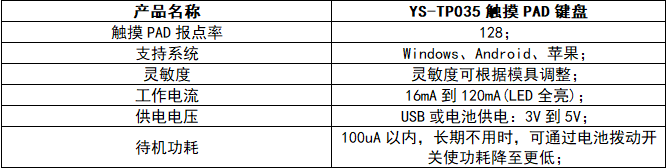
● Working voltage: USB or battery 3V to 5V;
Power consumption: 16mA (with all LEDs turned off);
● Standby power consumption; Within 100uA, when not in use for a long time, the power consumption can be reduced to a lower level by turning the switch on the battery;
● Interface: Bluetooth and Type_C;
● Dimensions: 342 mm * 113mm;
Application scope
● Computer keyboard;
● Wireless keyboard;
● Industrial control;
● Smart home category;
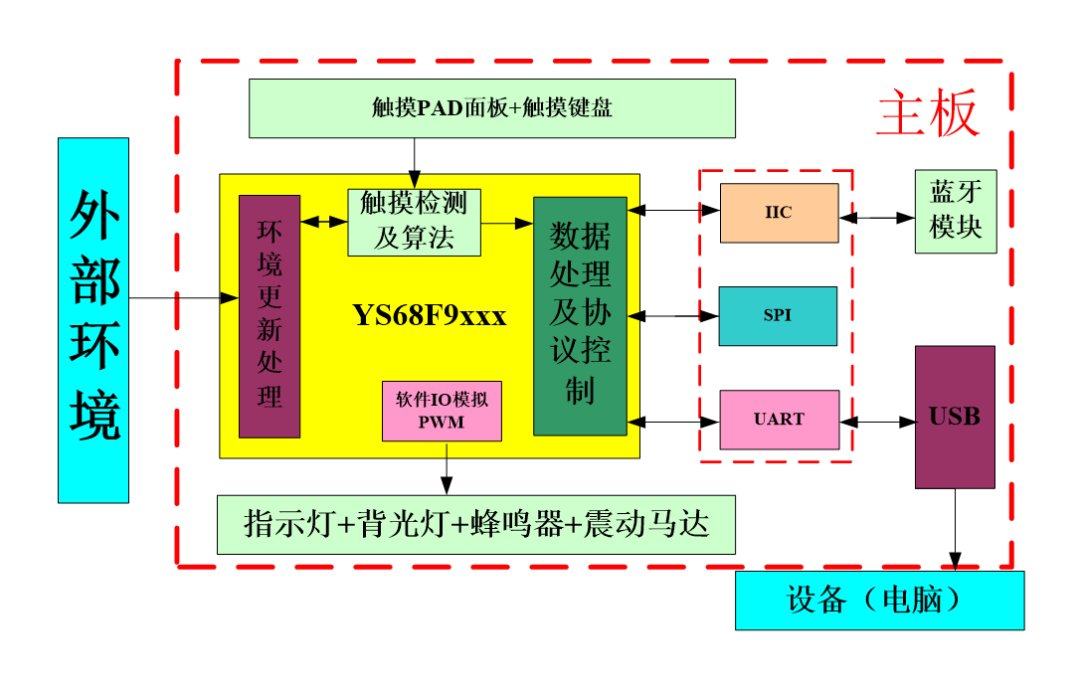
Product Diagram
Specification parameters
Connection instructions
Wired connection (computer USB) and Bluetooth connection are preferred for wired connection. When the computer USB is connected, the Bluetooth connection will be disconnected. When the computer USB is disconnected, Bluetooth controls the connection by holding down the FN+B button. The BT connection indicator light flashes. After successful connection, the BT status indicator light remains on; Connecting to USB will start charging, and when the adapter is connected to wired charging, it will not affect Bluetooth connection; The side toggle switch can control battery power supply, but it will not affect battery charging;
Keyboard Function Description
FN+Space: Adjust backlight mode (always on, breathing, wave, overlay, falling);
● FN+up/down/left/right: adjust backlight brightness and frequency;
FN+F1/F2 (wired): Multimedia command to adjust PC sound;
FN+F11/F12: Adjust the buzzer sound;
FN+B: Control Bluetooth connection;
Touch PAD Function Description
Single finger click: left mouse button;
Single finger drag: cursor movement;
Double click and drag with one finger: circle selection;
Double finger click: right-click with the mouse;
Double finger up and down drag: scroll wheel;
Double finger drag in opposite directions: zoom in and out;
Three finger click: locate the cursor in the middle of the screen;
Drag left and right with three fingers to switch the work interface;
● Three point upward drag: Open all work views;
● Three point downward drag: return to the desktop;
● Draw circles clockwise and counterclockwise: infinite dimming of backlight (for indication);
FN+PAD left up and down sliding (slider): infinite dimming of backlight (for indication);


0755-86227153


